Zed Frame User Guide
Step-by-step help for the ABAP workbench, Dictionary, code reviews, specifications, CDS Studio and account capabilities.
ABAP Editor: open, type, import, export, save, reset, clear
The editor is where programs live. You can write from scratch, paste, open an Example Program, or import a file, then check and run the code against the local ABAP simulator.
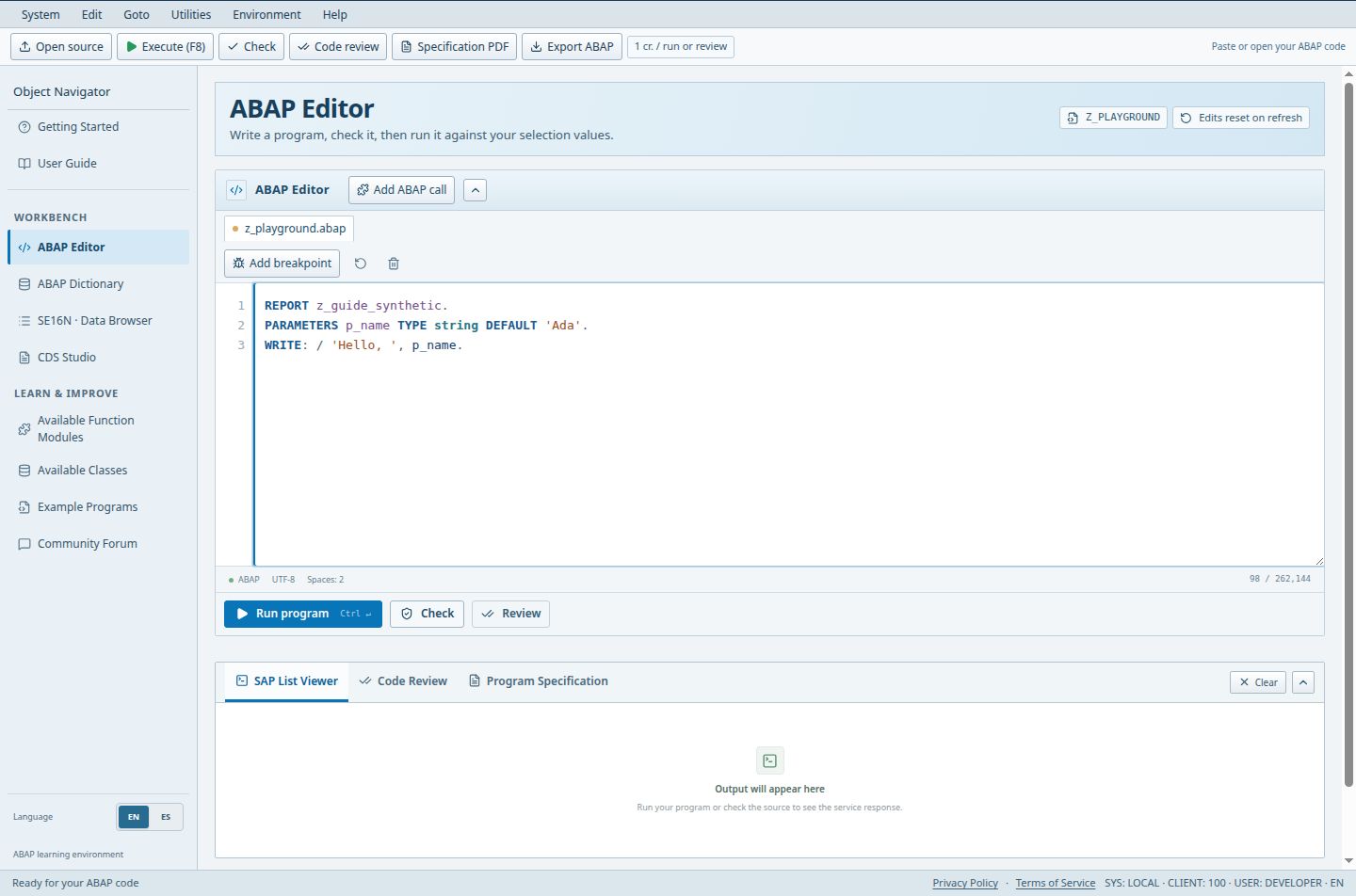
- Execute (F8): initialize selections or execute the report.
- Write or paste ABAP source here. This report uses invented training values.
- Click a line number to add or remove a breakpoint; registration is required.
Guests and Free users keep edits only until refresh; Pro and Teams autosave to the account.
Access (Guest / Free / Pro / Teams): full / full / full / full. full = Included; limited = Limited; signin = Sign-in required; no = Not included; soon = Coming Soon.
Steps
- Open ABAP Editor. The default program is named Z_PLAYGROUND and you can type directly into it.
- To start from a sample, open Example Programs and choose Open; the source loads into the editor without running.
- Use the classic toolbar at the top: Open source loads a file from disk, Export ABAP downloads the current source, Check and Code review run those tools, and Specification PDF opens Program Specification. Inside the editor panel, Add ABAP call opens the call helper (supported function, class method or SUBMIT), and the source counter shows your size against the 262,144-character limit.
- The icon buttons Reset editor and Clear editor sit beside the counter. Reset restores the starting program; Clear empties the source and the current results. Neither touches other saved programs. Both are disabled while the debugger is active.
- Under the editor, Check validates the source, Review opens the standard review, and Run program (Ctrl+Enter) executes. Example: paste a short REPORT that WRITEs a line, press Check, read any diagnostics, then press Run program and look in the SAP List Viewer tab.
Good to know
- The runtime is a simulator that implements a defined subset of ABAP. It is not a connection to a real SAP system.
- Header chips show the program name and whether your edits are autosaved or reset on refresh.
Limits
- Unsaved work in Guest and Free sessions is lost on page refresh. Export important code first.
Troubleshooting
- Imported file looks wrong: confirm it is plain text ABAP, not a document or PDF.
Worked example
Paste this complete report into an empty editor. Check it, then run it to open a selection screen. Change the name and choose Run with selections; the output should greet that name. Loading or reading this example does not execute it.
REPORT z_guide_hello.
PARAMETERS p_name TYPE string DEFAULT 'Learner'.
START-OF-SELECTION.
  WRITE: / 'Hello', p_name.
Open ABAP Editor in the workbench Browse example programs in the workbench
Selection screens and the selections flow
Programs that declare PARAMETERS or SELECT-OPTIONS get a selection screen before running. You fill the values, then run.
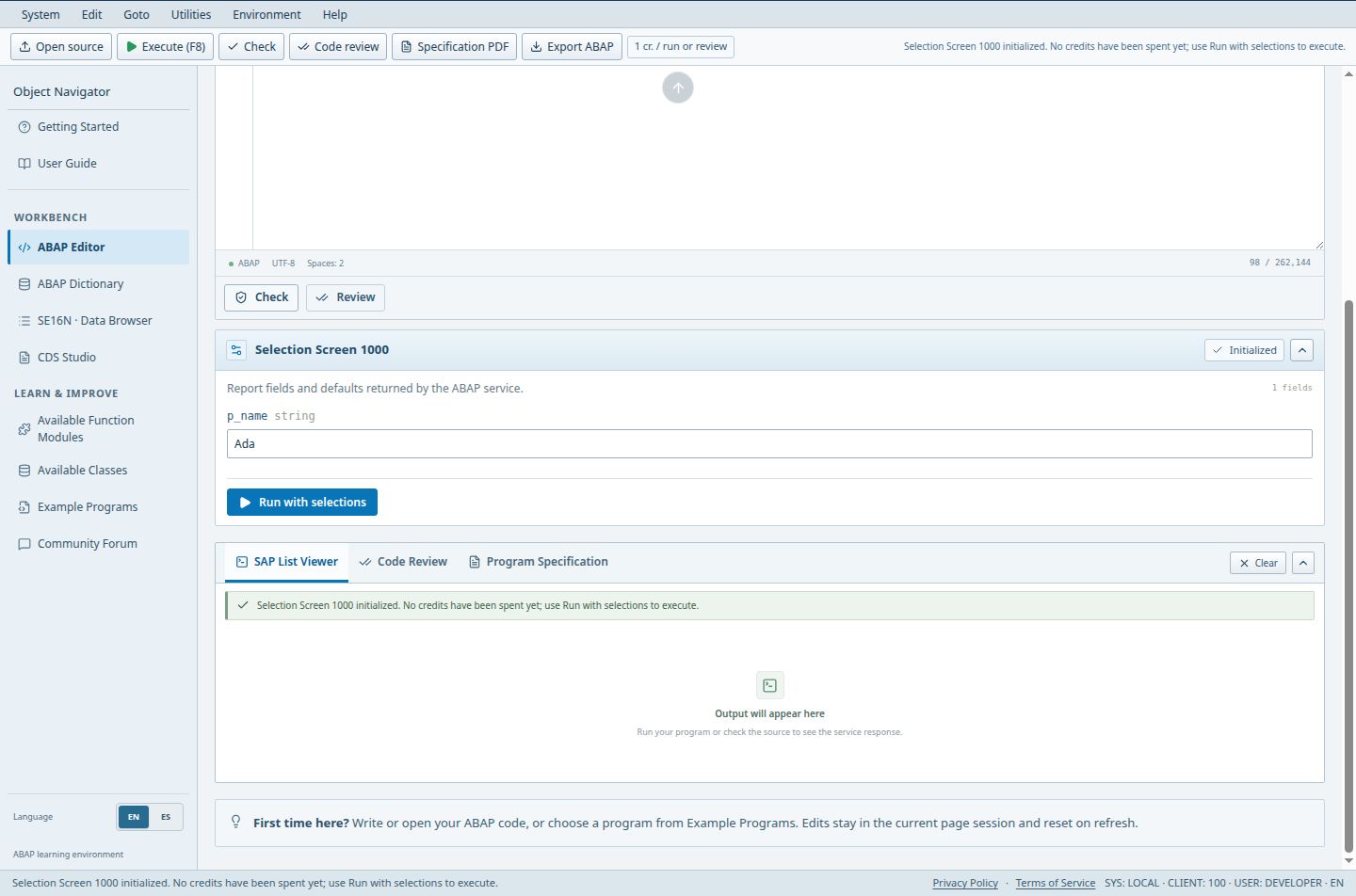
- P_NAME is the declared parameter; change the training value before executing.
- Run with selections starts the report using these values.
- The Selection Screen section appears only when the source declares selectable inputs.
Access (Guest / Free / Pro / Teams): full / full / full / full. full = Included; limited = Limited; signin = Sign-in required; no = Not included; soon = Coming Soon.
Steps
- Write or open a program that declares PARAMETERS or SELECT-OPTIONS.
- When the source declares a selection screen, Run program first initializes it and shows the fields with an Initialized chip. Initialization is free and consumes no credits.
- Enter values (single values, ranges or lists where the declaration allows them).
- Press Run with selections. The billed cost is calculated from the source, and the output opens in the SAP List Viewer tab. Example: enter a company code or a range in a SELECT-OPTION, run, and check that the list contains only matching rows.
Good to know
- Pro and Teams restore your last selections and results together with the saved program.
- When the source changes the selection screen is rebuilt, so re-check values after edits.
Limits
- Only the selection constructs the simulator supports are shown; unsupported statements produce a diagnostic.
Troubleshooting
- No selection screen appears: the program may declare nothing selectable, or a syntax error blocks initialization. Fix the diagnostics first.
Output: ALV grid, CSV, dumps and source navigation
After a run the result viewer shows list output, structured SAP List Viewer (ALV) grids, messages and runtime diagnostics.
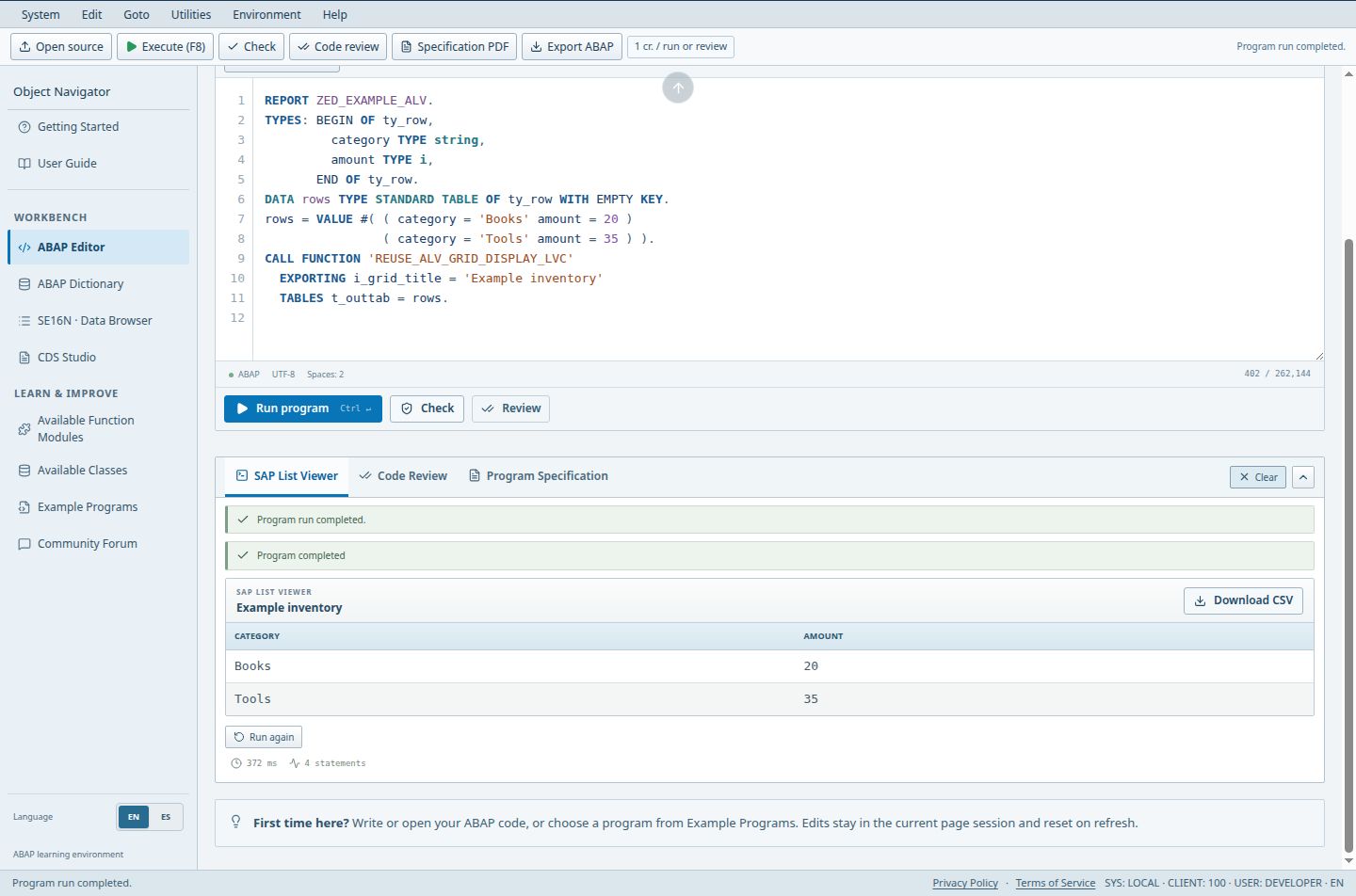
- The title identifies the ALV output produced by the report.
- Download CSV exports the displayed result rows.
- Read the grid columns and records before interpreting the result.
Access (Guest / Free / Pro / Teams): full / full / full / full. full = Included; limited = Limited; signin = Sign-in required; no = Not included; soon = Coming Soon.
Steps
- Run a program and open the SAP List Viewer tab: plain WRITE lines appear as a classic list. Clear removes the current output; Run again repeats the last request after an error.
- When a program produces an ALV grid, review the columns and press Download CSV (the file is named sap-list-viewer.csv).
- If a run ends in a runtime error, the Runtime Error - Long Text view shows Category, Exception, ABAP Program, Date and Time, Short Text and Contents. Export diagnostic saves it.
- Choose Go to source line to return to the editor at the failing statement.
Good to know
- Diagnostics are produced by the simulator; the wording is similar to SAP but not identical.
- CSV export contains the rows shown in the grid at the time you export.
Limits
- Advanced ALV events and full SAP GUI behavior are outside the simulator.
Troubleshooting
- Output is empty: the program may have selected from a table with no rows in your catalog. Check SE16N.
Debugger
Step through a program and inspect variables. Debugging is a registered-user feature.
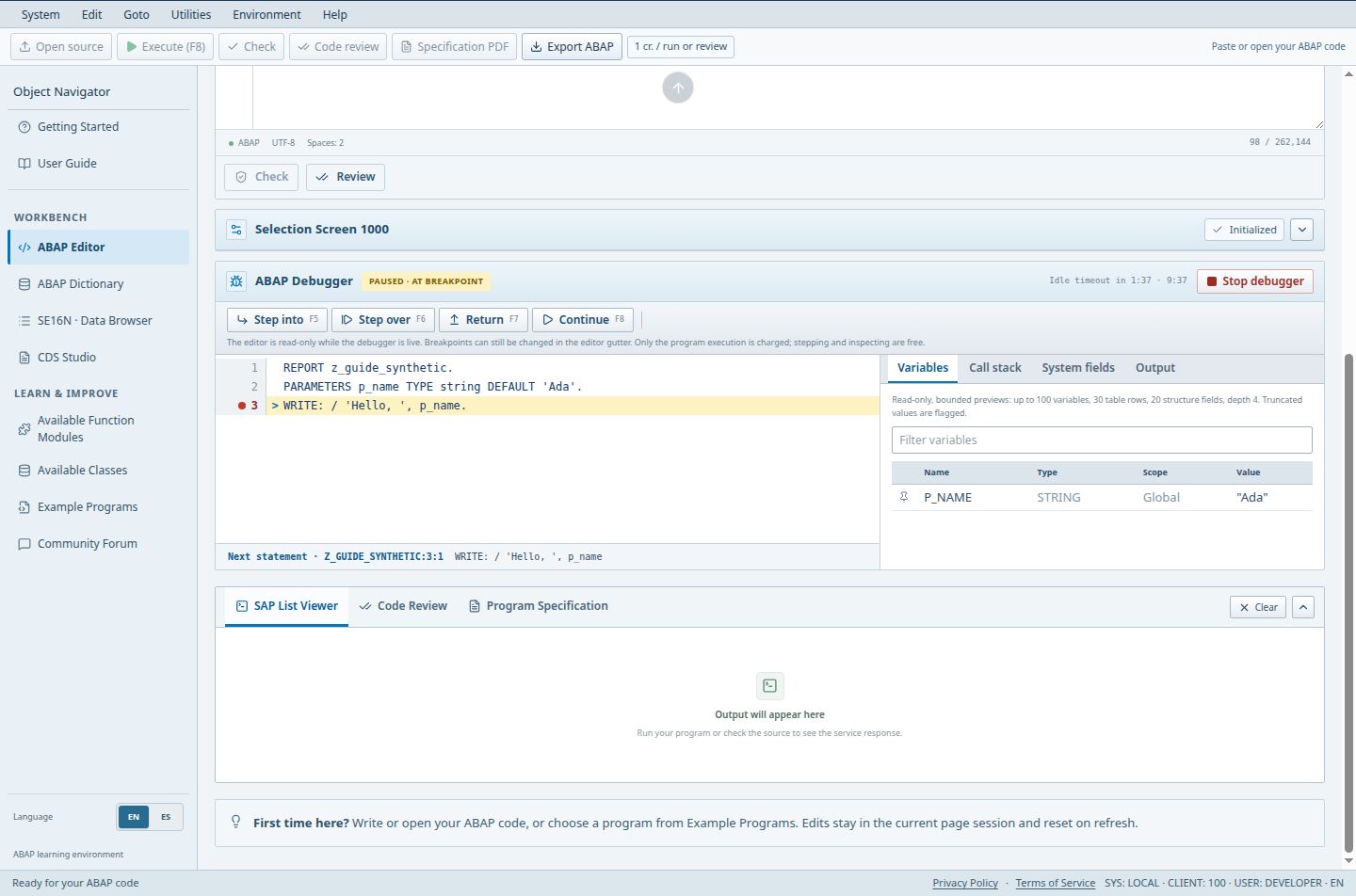
- The status confirms execution is paused at a breakpoint.
- Step over (F6) advances through the current statement.
- Continue (F8) resumes until the next breakpoint or program end.
- The variable inspector shows the current P_NAME training value.
Guests cannot debug. Debug steps are free and use no credits.
Access (Guest / Free / Pro / Teams): no / full / full / full. full = Included; limited = Limited; signin = Sign-in required; no = Not included; soon = Coming Soon.
Steps
- Sign in. Debugging needs registration and is available on Free, Pro and Teams. Guests do not get the Add breakpoint control.
- Use Add breakpoint (at the cursor line) or click line numbers to set or remove breakpoints, then run. In the ABAP Debugger panel use Step into, Step over, Return, Continue and Stop debugger.
- Inspect the tabs Variables, Call stack, System fields, Output and Breakpoints; use Filter variables, and Pin to watch list for the values you follow. Sessions expire after 2 minutes idle or 10 minutes total.
Good to know
- Stepping does not bill credits; only a full run is billed by source-based cost.
Limits
- The debugger follows the simulator; it does not attach to real SAP work processes.
Troubleshooting
- Debugger not offered: confirm you are signed in.
Private programs, tabs and autosave
Pro, Teams and administrator accounts get a private program tree with editor tabs, autosave and restored selections and results.
Free users should export code, since refresh clears the session.
Access (Guest / Free / Pro / Teams): no / no / full / full. full = Included; limited = Limited; signin = Sign-in required; no = Not included; soon = Coming Soon.
Steps
- Use Open new program tab to create another program; each program is a tab above the editor.
- Use Rename on a saved program in the tree, or Delete program, which asks for confirmation.
- Autosave stores edits in the background. Save now writes immediately; Retry save appears when a save failed.
- Example: keep Z_PLAYGROUND for experiments and open a second tab for a report you want to keep; SUBMIT can then call it by name.
Good to know
- Saved programs are private to your account. A Teams membership never shares anyone else's programs or data.
- Retry save appears if a save fails; your local text stays on screen.
Limits
- Shared workspaces are Coming Soon and are not available.
Troubleshooting
- Status says it could not load: use Retry; your account and saved work are unchanged.
Open ABAP Editor in the workbench See plans in the workbench
SUBMIT and the allowlist
ABAP SUBMIT can start another report, but only from a controlled set.
Guests and Free can target bundled example programs; only Pro, Teams and admin can also target their own saved programs.
Access (Guest / Free / Pro / Teams): limited / limited / full / full. full = Included; limited = Limited; signin = Sign-in required; no = Not included; soon = Coming Soon.
Steps
- Open Example Programs to learn the names of bundled reports.
- Write SUBMIT with the report name, passing selection values if needed.
- Pro and Teams can name another of their own saved programs.
Good to know
- Programs saved by other accounts are never reachable, and arbitrary reports are not accepted.
Limits
- A name outside the allowlist ends with a diagnostic.
Troubleshooting
- SUBMIT fails for a saved program: confirm the program is saved in your account and that you are on Pro or Teams.
ABAP Dictionary: inspect tables and maintain private data
The Dictionary shows the session table catalog with fields and sample data. Paid plans can create tables and fields and keep them.
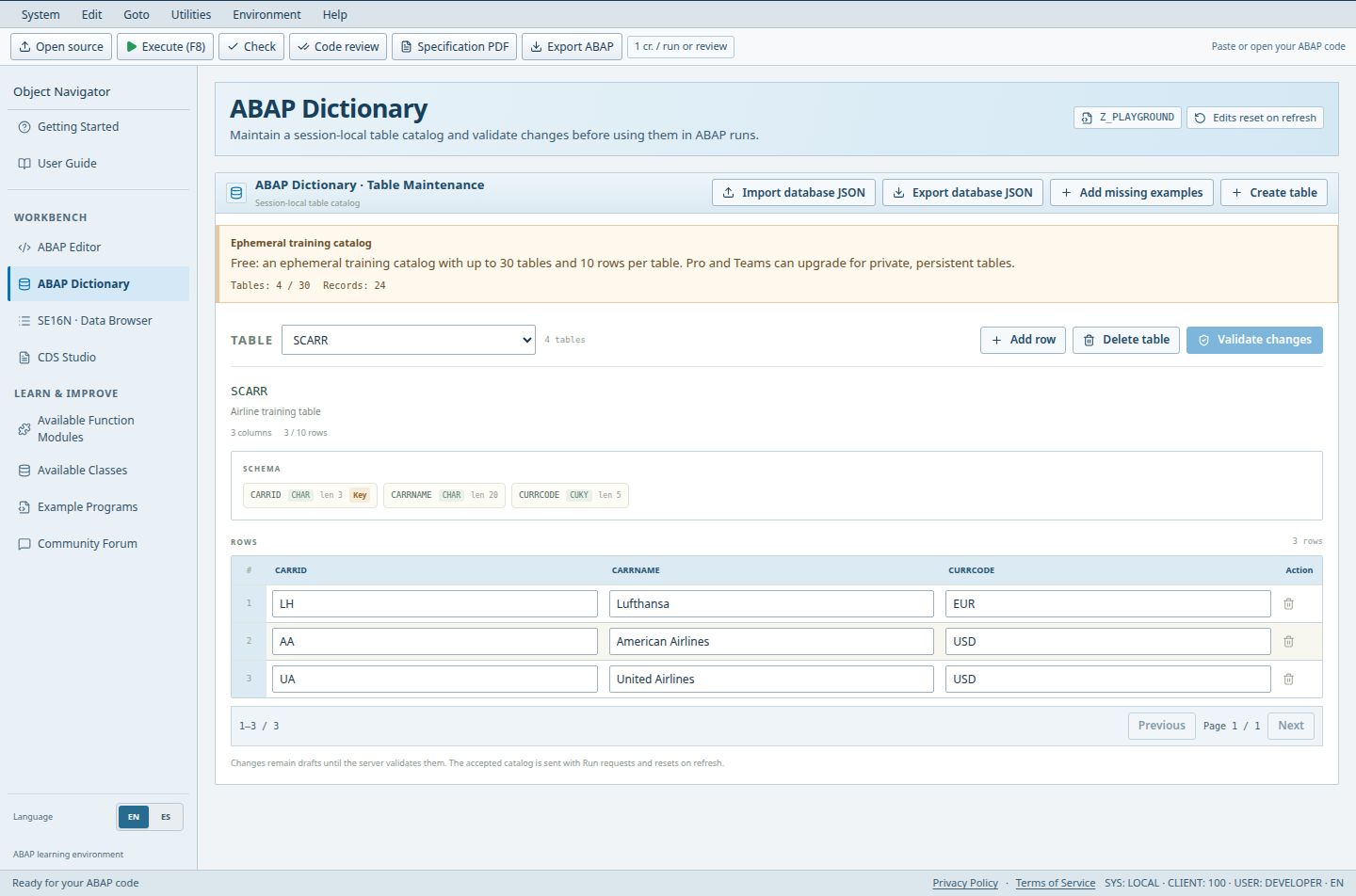
- Select the table whose structure and data you want to inspect.
- CARRID is one of the field definitions in the schema.
- These sample records belong to the selected table, not to an external SAP system.
Everyone can inspect. Free and guest changes are a temporary catalog (10 rows per table) that resets on refresh. Pro and Teams persist.
Access (Guest / Free / Pro / Teams): limited / limited / full / full. full = Included; limited = Limited; signin = Sign-in required; no = Not included; soon = Coming Soon.
Steps
- Open ABAP Dictionary and choose a table in the Table selector to inspect its schema and rows.
- On Pro or Teams, choose Create table, enter a name (Z_MY_TABLE style), an optional description, then Add field for each column with Type, Length, Decimals and the Key checkbox. Guests and Free users can inspect the catalog and edit permitted temporary sample data, but cannot create persistent private tables.
- Use Add row, edit cells, or Delete table (with confirmation) to maintain data.
- Choose Validate & save (Pro/Teams) or Validate changes (others). Edits are drafts until the server validates them.
- Use Import database JSON and Export database JSON to move a catalog, and Add missing examples to restore sample tables.
Good to know
- Up to 30 characters for names; up to the field limit per table; lengths to 65535, decimals to 14.
- The catalog is sent with Run requests, so ABAP programs can SELECT from your accepted tables.
Limits
- Paid accounts: 50 tables and 10,000 records in TOTAL across all tables, sample tables included, plus an 8 MB safety limit. This is not per table.
- Free catalogs are temporary: 10 rows per table; never expect a persistent private workspace.
Troubleshooting
- Add row is disabled: you reached the row or total-record limit. Delete rows or tables.
Open ABAP Dictionary in the workbench Compare plans in the workbench
SE16N Data Browser
A read-only display of rows from the accepted catalog, in the style of General Table Display.
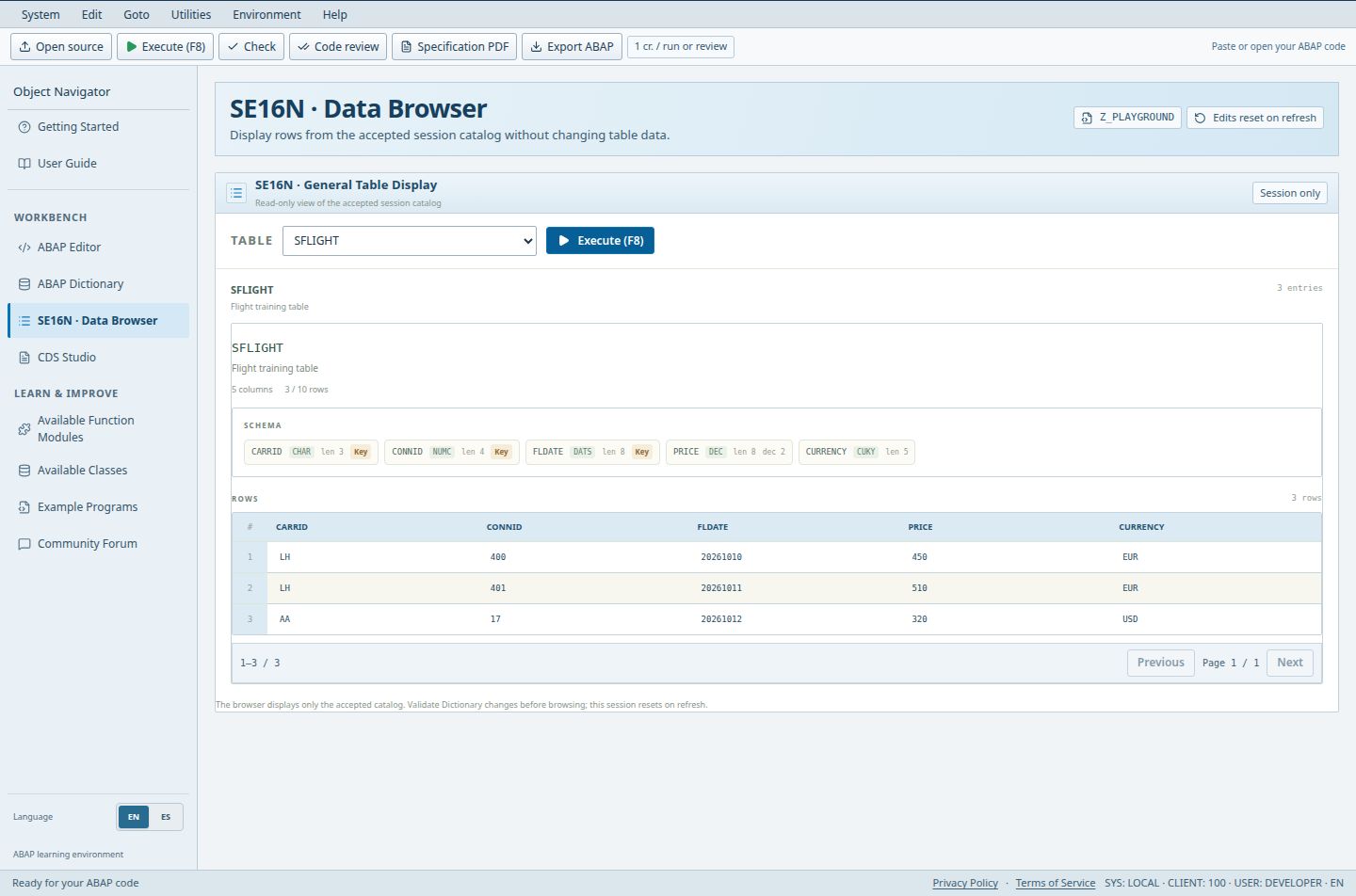
- The Table selector chooses SFLIGHT in this example.
- Execute (F8) displays the accepted rows for that table.
- The result area contains three synthetic flight records.
Pro and Teams see their private catalog; others see the session catalog.
Access (Guest / Free / Pro / Teams): full / full / full / full. full = Included; limited = Limited; signin = Sign-in required; no = Not included; soon = Coming Soon.
Steps
- Open SE16N and pick a table from the Table list.
- Choose Execute (F8). The entries count and the rows appear below.
- To change data, return to ABAP Dictionary; SE16N does not modify rows.
Good to know
- Only validated, accepted tables are listed. Unvalidated drafts are invisible here.
Limits
- There are no filter, import or export controls on this page; use Dictionary for JSON import and export.
Troubleshooting
- No accepted tables: restore the sample catalog or validate a permitted JSON import in Dictionary. Creating additional private tables requires Pro or Teams. If newly entered rows are missing, validate/save the Dictionary draft before executing SE16N again.
Open SE16N in the workbench Open Dictionary in the workbench
Functions, classes, call helper and examples
Three learning pages list what the simulator really supports.
Access (Guest / Free / Pro / Teams): full / full / full / full. full = Included; limited = Limited; signin = Sign-in required; no = Not included; soon = Coming Soon.
Steps
- Open Available Function Modules for supported modules, parameters, examples and simulation limits. In the editor, Add ABAP call inserts a supported function call, class method or SUBMIT.
- Open Available Classes to browse implemented classes and methods.
- Open Example Programs to open, run, or use a fixed sample as a SUBMIT target.
Good to know
- If it is not listed, it is not implemented. Treat these pages as the contract.
Limits
- Calling an unlisted function or method yields a diagnostic, not SAP behavior.
Troubleshooting
- Inserted call does not compile: compare parameter names and types with the list.
Function modules in the workbench Classes in the workbench Examples in the workbench
End-to-end exercise: table to browser to ABAP report
Use a single small data model to see how Dictionary, SE16N and the editor cooperate. This exercise creates private objects, so it requires Pro, Teams or administrator access.
Access (Guest / Free / Pro / Teams): no / no / full / full. full = Included; limited = Limited; signin = Sign-in required; no = Not included; soon = Coming Soon.
Steps
- In ABAP Dictionary, create Z_GUIDE_ORDERS. Add ORDER_ID as a character key, AMOUNT as a decimal field with two decimal places, and CURRENCY as a three-character field. Keep the names exactly the same as in the report below.
- Add two illustrative records: A001 / 100.00 / USD and A002 / 50.00 / EUR. These are invented training values. Choose Validate & save and resolve any schema or data diagnostic.
- Open SE16N, select Z_GUIDE_ORDERS and choose Execute (F8). Confirm the two IDs, amounts and currencies are correct. If they are absent, return to Dictionary and save the accepted catalog first.
- Create a private program from the plus control in the left program tree or the tab strip. Paste the report below, check it and run. This report has no selection fields, so it goes directly to execution.
- Compare the WRITE lines with SE16N. Change one amount in Dictionary, validate/save, execute SE16N again and rerun the report. Both should reflect the updated accepted data; old output is a previous execution snapshot.
Good to know
- The table and program remain private to you even when Teams sponsors your access. Saving is separate from executing; a rerun consumes the displayed execution cost.
Limits
- The example uses the same 50-table / 10,000-total-record account limits as other private data. It does not create a real SAP DDIC object or write to an external SAP system.
Troubleshooting
- Unknown table or component: compare the accepted table and field names with the report. Empty output: inspect the accepted records in SE16N, not an unsaved Dictionary draft.
Worked example
Run only after creating and saving the table and fields described above. The report reads your account catalog, not an SAP production database. Keep currencies visible instead of adding unlike currencies together.
REPORT z_guide_orders.
DATA lt_orders TYPE TABLE OF z_guide_orders.
SELECT * FROM z_guide_orders INTO TABLE lt_orders.
LOOP AT lt_orders INTO DATA(ls_order).
  WRITE: / ls_order-order_id, ls_order-amount, ls_order-currency.
ENDLOOP.
Create the training table in the workbench Inspect accepted rows in the workbench Write the report in the workbench
Code review: Basic and Advanced+
Review inspects the current ABAP source for correctness, maintainability and likely issues. Basic is available to all; Advanced+ adds detailed, source-linked findings.
Basic review: everyone, billed by source-based cost. Advanced+: Pro and Teams only (others see the Advanced+ - Pro & Teams button).
Access (Guest / Free / Pro / Teams): full / full / full / full. full = Included; limited = Limited; signin = Sign-in required; no = Not included; soon = Coming Soon.
Steps
- Put the program in the editor and press Review, Code review (toolbar) or open the Code Review tab.
- Run the standard review and read the findings grouped by severity.
- On Pro or Teams, switch to Advanced+ for performance, correctness, security and maintainability findings with source links.
- Follow a finding link to the line, fix it, and review again.
Good to know
- Advanced+ analysis runs privately and does not use external AI.
Limits
- Findings are guidance for learning, not a certification for production SAP code.
Troubleshooting
- Advanced+ locked: your account is not Pro or Teams. Compare plans.
FSD and TSD designs, PDF export and optional AI
Generate a functional (FSD) and technical (TSD) design from the current source, view it, and export PDF in full, concise or technical form.
Sign-in required. Monthly allowance per user: Free 1, Pro 30, Teams 50. It is a separate allowance, not credits. Resets on the first day of each month (UTC).
Access (Guest / Free / Pro / Teams): no / limited / full / full. full = Included; limited = Limited; signin = Sign-in required; no = Not included; soon = Coming Soon.
Steps
- Sign in (guests cannot generate), open the editor with your program, then use Specification PDF in the toolbar or the Program Specification tab.
- Generate the design. Unchanged source reuses the same allowance across the design view and every PDF format.
- Download a PDF: full, concise or technical.
- Optionally tick the AI-assisted checkbox before generating; it is off by default.
Good to know
- AI shares only anonymized business rules and calculations. Raw source, identifiers, comments, literals and table rows are never sent.
- AI limits: 32,000 input characters, 9,000 completion tokens, 180 seconds, no automatic retries, private cache per source/analyzer revision. After the deadline fix, an older failed request allows one explicit recovery attempt within the monthly AI limit; successful cached designs are reused.
- Monthly AI attempts: Free 1, Pro 30, Teams 50, Admin 50, separate from the FSD allowance.
Limits
- AI content is labeled as not source-confirmed and is not legal, compliance or SAP production approval. If you select AI and it fails, generation stops with an error: no fallback document is generated and the FSD allowance is not consumed. An attempted AI call still counts toward the separate AI-attempt limit; automatic retries are disabled.
Troubleshooting
- Allowance used up: wait for the monthly reset, or upgrade for a larger allowance.
Open editor in the workbench See allowances by plan in the workbench
Diagnostic Reports: paid static assessment and PDF
A diagnostic report assesses the current editor source across six areas with evidence-linked findings, proposed owners and acceptance criteria. It is different from an FSD/TSD design, which documents what a program does, and from Advanced+ review.
Paid only. Pro 10 and Teams 20 reports per month per user; administrators unlimited. Independent monthly quota (UTC); no credits or FSD allowance used.
Access (Guest / Free / Pro / Teams): no / no / full / full. full = Included; limited = Limited; signin = Sign-in required; no = Not included; soon = Coming Soon.
Steps
- Put the program in the editor, open Diagnostic Reports and press Generate. No execution is needed and no upload is required.
- Optionally tick AI advice (off by default) before generating.
- Read the summary, areas, metrics and findings; use the line buttons to jump into the editor.
- Download the PDF of the current report. Unchanged source in the same month reuses the cached report and re-exports it without using another allowance.
Good to know
- Analysis is static and private. Areas are marked partial or not assessed; the score is indicative only.
- AI attempts: up to 3 per source per month and twice your monthly report allowance in total (administrators 100); 2-minute cooldown after a failure; retries are manual only. At the monthly cap you can reopen a report already created for the same source and AI choice.
- Optional AI receives only anonymized static signals, never raw source, comments, snippets or table rows (180 seconds, up to 9,000 tokens).
Limits
- A report is never a production approval. If AI is selected and fails, no report or PDF is created and the allowance is released.
Troubleshooting
- Gate shown: Free accounts cannot generate reports; compare plans.
Open Diagnostic Reports in the workbench Compare plans in the workbench
Credits, rewards and allowances
Credits meter running and reviewing code. Other limits, like FSD allowances, are tracked separately. The credit meter in the header shows your current credits.
Guests: 5 monthly credits shared per IP address. Registered Free: starting 20 monthly credits per account. Paid balances follow your plan; administrators are unlimited.
Access (Guest / Free / Pro / Teams): limited / full / full / full. full = Included; limited = Limited; signin = Sign-in required; no = Not included; soon = Coming Soon.
Steps
- Run or review code: the cost is calculated from the source.
- Initialize selection screens and step in the debugger at no cost.
- Earn rewards: registered users get a lifetime +5 for the first run, +10 for the first post and +10 for ten posts.
Good to know
- Read your current credits in the header credit meter. Paid balances are not quoted here; the meter is the source of truth.
Limits
- Guest credits are shared by everyone on the same IP, so a school or office network can exhaust them quickly. Sign in to get your own.
Troubleshooting
- Run refused for credits: sign in, claim rewards, or compare plans.
Plans and pricing in the workbench Earn rewards in the forum in the workbench
CDS Studio: tabs, validation, preview and data contexts
Write CDS view entities, validate them, preview rows, and inspect the model. It is an educational subset, not SAP, HANA, production OData, Fiori or DCL.
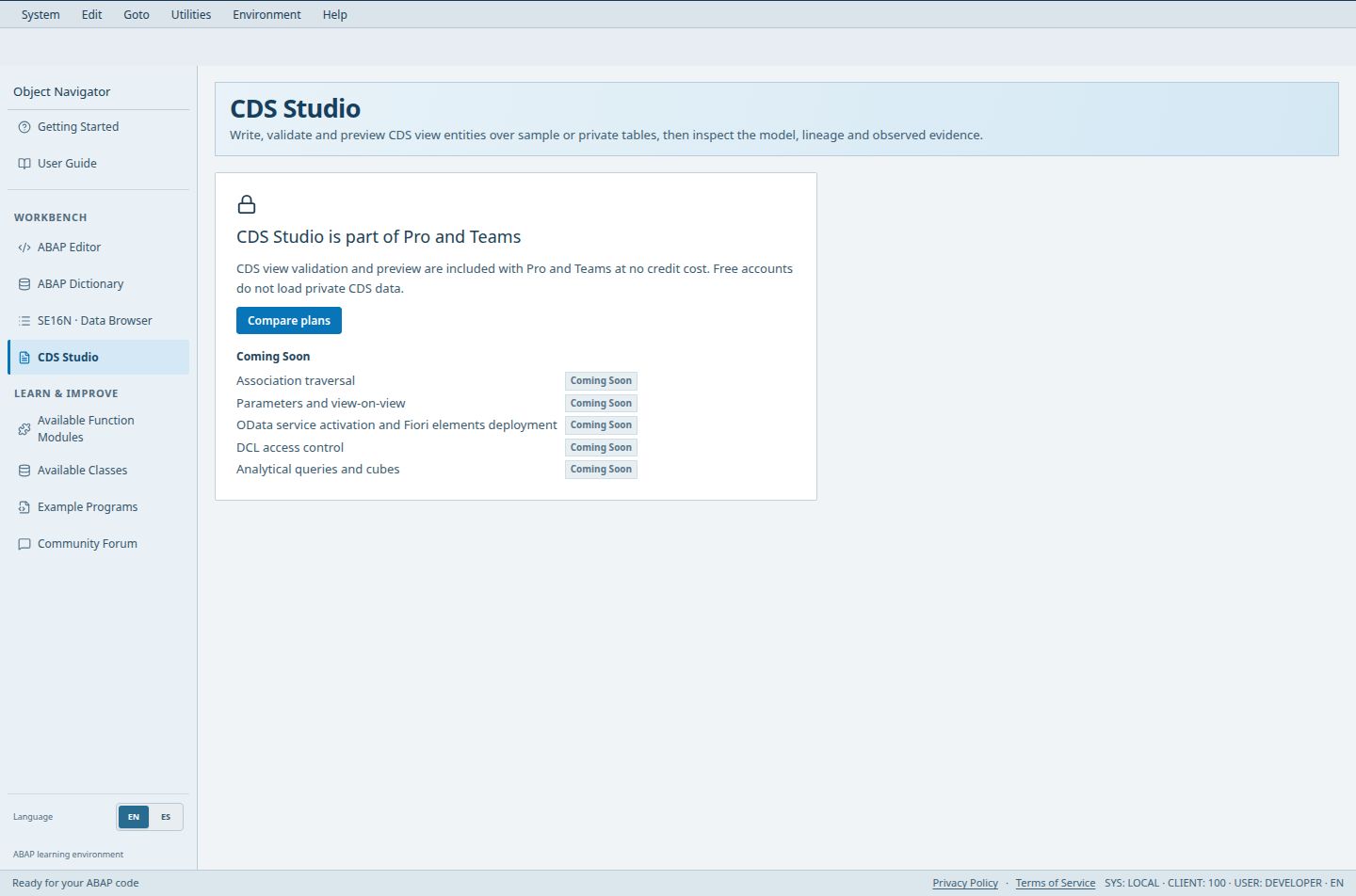
- The access notice explains that CDS Studio is part of Pro and Teams.
- Compare plans opens the subscription comparison; viewing this notice does not run a preview or spend credits.
Pro, Teams and administrator only. Validation and preview use no credits. Processing happens privately on the backend.
Access (Guest / Free / Pro / Teams): no / no / full / full. full = Included; limited = Limited; signin = Sign-in required; no = Not included; soon = Coming Soon.
Steps
- Sign in on Pro or Teams and open CDS Studio. Free accounts see a gate with Compare plans.
- Pick a Data context: Accounts receivable sample, Bank sample, Stock sample, or My private dictionary tables. The sample contexts are fixed and separate from your ABAP dictionary.
- Write source in the Source tab. Validate (Ctrl+Shift+Enter) checks syntax and semantics without reading rows; Preview (Ctrl+Enter) also reads rows.
- Walk the tabs: Source, Data (result rows), Consumer (educational list and selection fields from UI annotations), Model (structure and lineage) and Explain (observed evidence). Arrow keys, Home and End move between tabs.
- Save the source with Save as view, give it a unique name, and use Update when you edit it later. Import and Export DDLS files from More.
Good to know
- Workspace autosaves; the status bar shows All changes saved, Unsaved changes, Save failed or Save conflict. On conflict you can export your source or reload the saved version.
- Pro, Teams and administrators restore saved source, program names, tabs, breakpoint definitions and private tables after refresh. Run results, reviews, specification previews and selection screens/values start fresh: execute or request analysis again. Runtime artifacts may remain while switching tabs in the same browser session, but are never restored from the saved workspace.
- Results go stale when the source, data context or catalog changes; run again.
Limits
- Supported: view entity, inner and left outer joins (up to 4), aliases, arithmetic, CASE, WHERE predicates, SUM/COUNT/MIN/MAX with GROUP BY and HAVING, and selected @UI, @EndUserText and @Semantics annotations.
- Limits: 500 result rows, 10,000 input rows, 20,000 working join rows, 1 million operations; 30 saved views of 50,000 characters, 900 KB total.
Troubleshooting
- Diagnostics list the line and column; choose one to jump into the source. Other annotations only warn and have no effect.
Open CDS Studio in the workbench Prepare private tables first in the workbench
CDS tutorial and guided labs
A 13-lesson tutorial and three guided labs teach CDS in the studio itself.
Access (Guest / Free / Pro / Teams): no / no / full / full. full = Included; limited = Limited; signin = Sign-in required; no = Not included; soon = Coming Soon.
Steps
- Open CDS tutorial in the side panel and move through the steps with Previous and Next, or choose a step from the list.
- At the try-it step choose Load tutorial source, then run Preview. Loading never runs anything automatically.
- Open Guided labs (Accounts receivable, Bank, Stock). Read the Find the mistake note and challenges, then Load source.
- Use Check your understanding and the Hint disclosures for self-assessment.
Good to know
- Loading a lab or tutorial replaces your draft after a confirmation if you have unsaved changes.
Limits
- Save work as a view before loading a lab.
Troubleshooting
- Tutorial does not show: it is part of the studio, so the Pro/Teams gate applies.
Community forum and accepted solutions
The forum is for ABAP questions, snippets and tips. Anyone can read; posting is for registered members.
Guests read only. Ordinary posting and replies require sign-in.
Access (Guest / Free / Pro / Teams): limited / full / full / full. full = Included; limited = Limited; signin = Sign-in required; no = Not included; soon = Coming Soon.
Steps
- Open Community Forum and browse threads without signing in; issue reports appear in the Issues tab.
- Sign in to start a thread or reply.
- The question author can mark a helpful reply as the accepted solution.
Good to know
- Only administrators set rules, pin threads and moderate content. The Administrator badge identifies only administrators.
- Accepted-solution badges at 10 and 20 recognize contributions; they do not verify identity.
Limits
- Posts are public to readers; do not paste confidential business code or personal data.
Troubleshooting
- Cannot post: check you are signed in and not rate limited.
Reporting issues with captcha
Problem reports can be sent even by guests, protected by a captcha.
Allowed with zero credits remaining.
Access (Guest / Free / Pro / Teams): full / full / full / full. full = Included; limited = Limited; signin = Sign-in required; no = Not included; soon = Coming Soon.
Steps
- Press Report an issue in the global header. The report form opens; it remains available without registration or execution credits.
- Fill Report title (at least 8 characters) and What happened? (at least 20 characters, include steps to reproduce, expected and actual result). Your name is optional; guests appear as Guest contributor.
- Guests answer the Quick check challenge (numeric answer; refresh it if expired) and submit. Reports are shared in the Issues tab of the Community Forum.
Good to know
- Never include passwords or secrets in a report.
Limits
- Reports are triaged by administrators; there is no guaranteed response time.
Troubleshooting
- Captcha fails or expires: refresh the challenge and retry without discarding your draft. A failed submission is not confirmation that a report was saved. Administrators classify reports and update status; ordinary forum posting restrictions do not prevent guests from reporting issues.
Profiles, levels and badges
Your profile is the identity shown beside forum contributions, with level and badges earned from activity.
Everyone can read visible community profiles. Signing in is required to edit your own display name, avatar or default language.
Access (Guest / Free / Pro / Teams): limited / full / full / full. full = Included; limited = Limited; signin = Sign-in required; no = Not included; soon = Coming Soon.
Steps
- Hover over your username and choose View profile to inspect your public page. Clicking your username also opens it. The profile shows join date, member level, earned badges and visible contribution totals.
- Choose Edit profile from the account menu to change the display name, pick an available avatar and select English or Spanish as your saved default language. Save to apply changes; cancel leaves the stored profile unchanged.
- Review totals for discussions, replies, questions answered and accepted solutions. The latest five visible posts link back to their discussions; hidden or removed content is not a public activity feed.
- Select a registered author name in the forum to read the member profile. Contribution badges at 10 and 20 accepted solutions recognize helpful answers; they are not identity verification or a guarantee of professional qualifications.
Good to know
- Non-person avatars are available as well as people. The company-representative avatar is administrator-only. Administrators show Administrator instead of ordinary member-level badges.
- Public profiles do not show email addresses, IPs, credit balances, billing details, private programs or private tables. A temporary sidebar language change does not overwrite the default saved in Edit profile.
Limits
- Badges are recognition only and do not unlock paid features.
Troubleshooting
- Profile will not save: retry; check your connection.
Teams: invitations, seats and privacy
Teams owners invite members by email and manage purchased seats in Subscription & billing.
Owner actions need a Teams subscription. Invited members get Teams capabilities and 50 FSDs per month while eligible.
Access (Guest / Free / Pro / Teams): no / no / no / full. full = Included; limited = Limited; signin = Sign-in required; no = Not included; soon = Coming Soon.
Steps
- As owner, open Subscription & billing, find Purchased seats and Invite by email, enter the member email and press Reserve seat & create invitation.
- The invitation is sent by email only; use Send / resend email if needed and Revoke invitation to cancel a pending one. The recipient signs in or signs up with the matching verified email.
- The member must explicitly accept. There is no manual token entry in the profile.
- Manage seats: Remove member frees a seat (their private programs and tables are not deleted). Pending invitations reserve seats.
Good to know
- The owner consumes a seat. Team access never shares anyone's programs, tables or data.
Limits
- Shared workspaces, collaborative reviews and shared templates are Coming Soon.
Troubleshooting
- Invitation will not accept: the signed-in account email must match the invited one; switch accounts if needed.
Billing and cancellation
Subscription & billing manages your plan, invoices and billing details.
A signed-in Free account can inspect its status and upgrade; invoices and renewal controls apply to an actual paid subscription. Paid members can always reach billing from the account menu, even when the header hides Plans & Pricing.
Access (Guest / Free / Pro / Teams): signin / limited / full / full. full = Included; limited = Limited; signin = Sign-in required; no = Not included; soon = Coming Soon.
Steps
- Compare Free, Pro and Teams in Plans & Pricing and start checkout while signed in.
- After checkout you return to a success or cancelled message.
- Use Subscription & billing to review plan, status, invoices and cancellation settings. Cancellation scheduled means the current paid period remains active; Canceled means the subscription has ended. Review the displayed end date and the billing portal before changing a subscription.
Good to know
- A scheduled cancellation stops renewal billing after the current paid period. Paid access continues until that period ends; there is no following subscription renewal charge. Amounts and invoices are shown in billing.
- Annual billing is charged upfront for the year; the monthly equivalent is a comparison, not twelve monthly charges. Teams pricing combines a platform fee and purchased seats. Confirm the selected interval, quantity and applicable tax in checkout.
Limits
- A cancelled checkout is not the same as cancelling an existing subscription. Closing the payment page does not cancel a plan you already have; use subscription management.
Troubleshooting
- Plan did not update after payment: refresh Subscription & billing before contacting support.
Coming Soon and simulator limits
What is not available yet, stated plainly.
Roadmap features are not available today. OData, Fiori and future CDS extensions are intended for Pro and Teams, not Free. Organization collaboration features listed below are Teams-only.
Access (Guest / Free / Pro / Teams): no / no / soon / soon. full = Included; limited = Limited; signin = Sign-in required; no = Not included; soon = Coming Soon.
Steps
- CDS associations, parameters, view-on-view and analytical features: Coming Soon.
- OData service definitions, entity sets and CRUD testing: Coming Soon for Pro and Teams; not included in Free.
- Fiori / SAPUI5 application layouts and user interfaces: Coming Soon for Pro and Teams; not included in Free.
- Shared workspaces, collaborative reviews, shared specifications and organization standards for Teams: Coming Soon.
Good to know
- Zed Frame simulates ABAP for learning. Results, performance and error text can differ from a real SAP system.
Limits
- Do not use Zed Frame output as production evidence.
Troubleshooting
- Statement unsupported: check the function, class and CDS subset lists before assuming a bug.