Getting Started with ABAP
Learn how to write, check and run ABAP in Zed Frame, use selection screens, and explore the local training Dictionary.
ABAP Editor: open, type, import, export, save, reset, clear
The editor is where programs live. You can write from scratch, paste, open an Example Program, or import a file, then check and run the code against the local ABAP simulator.
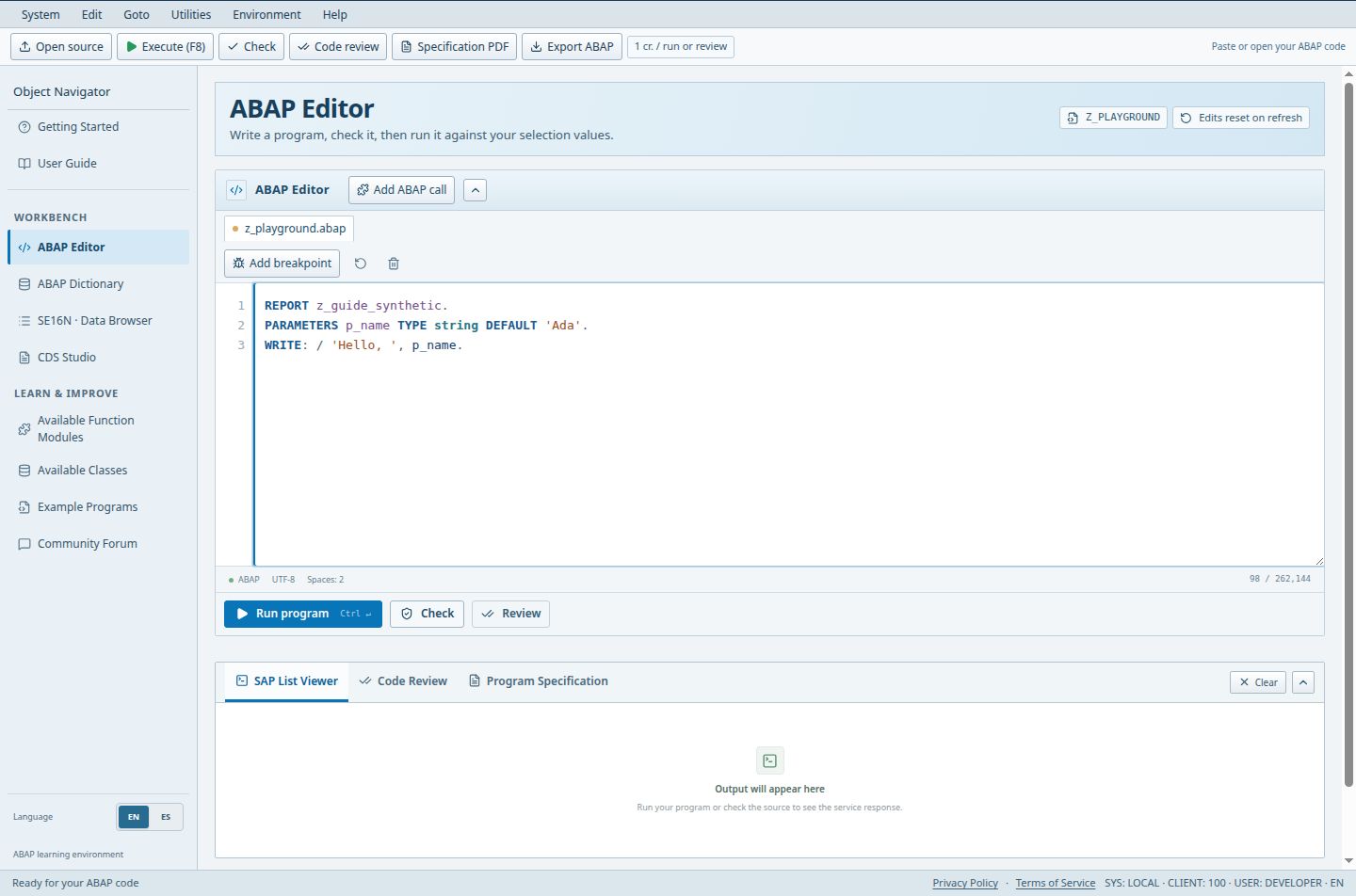
- Execute (F8): initialize selections or execute the report.
- Write or paste ABAP source here. This report uses invented training values.
- Click a line number to add or remove a breakpoint; registration is required.
Guests and Free users keep edits only until refresh; Pro and Teams autosave to the account.
Access (Guest / Free / Pro / Teams): full / full / full / full. full = Included; limited = Limited; signin = Sign-in required; no = Not included; soon = Coming Soon.
Steps
- Open ABAP Editor. The default program is named Z_PLAYGROUND and you can type directly into it.
- To start from a sample, open Example Programs and choose Open; the source loads into the editor without running.
- Use the classic toolbar at the top: Open source loads a file from disk, Export ABAP downloads the current source, Check and Code review run those tools, and Specification PDF opens Program Specification. Inside the editor panel, Add ABAP call opens the call helper (supported function, class method or SUBMIT), and the source counter shows your size against the 262,144-character limit.
- The icon buttons Reset editor and Clear editor sit beside the counter. Reset restores the starting program; Clear empties the source and the current results. Neither touches other saved programs. Both are disabled while the debugger is active.
- Under the editor, Check validates the source, Review opens the standard review, and Run program (Ctrl+Enter) executes. Example: paste a short REPORT that WRITEs a line, press Check, read any diagnostics, then press Run program and look in the SAP List Viewer tab.
Good to know
- The runtime is a simulator that implements a defined subset of ABAP. It is not a connection to a real SAP system.
- Header chips show the program name and whether your edits are autosaved or reset on refresh.
Limits
- Unsaved work in Guest and Free sessions is lost on page refresh. Export important code first.
Troubleshooting
- Imported file looks wrong: confirm it is plain text ABAP, not a document or PDF.
Worked example
Paste this complete report into an empty editor. Check it, then run it to open a selection screen. Change the name and choose Run with selections; the output should greet that name. Loading or reading this example does not execute it.
REPORT z_guide_hello.
PARAMETERS p_name TYPE string DEFAULT 'Learner'.
START-OF-SELECTION.
  WRITE: / 'Hello', p_name.
Open ABAP Editor in the workbench Browse example programs in the workbench
Selection screens and the selections flow
Programs that declare PARAMETERS or SELECT-OPTIONS get a selection screen before running. You fill the values, then run.
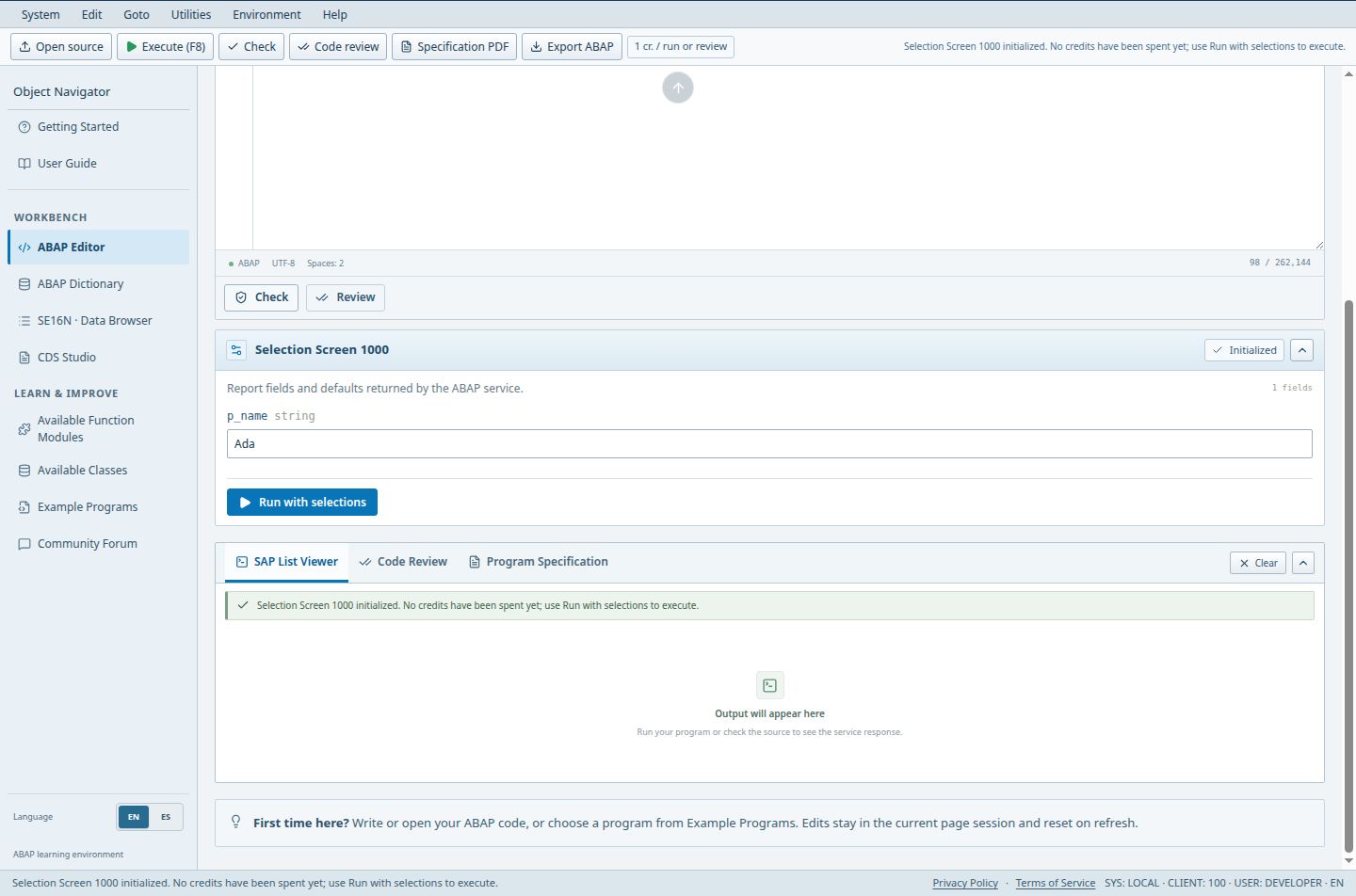
- P_NAME is the declared parameter; change the training value before executing.
- Run with selections starts the report using these values.
- The Selection Screen section appears only when the source declares selectable inputs.
Access (Guest / Free / Pro / Teams): full / full / full / full. full = Included; limited = Limited; signin = Sign-in required; no = Not included; soon = Coming Soon.
Steps
- Write or open a program that declares PARAMETERS or SELECT-OPTIONS.
- When the source declares a selection screen, Run program first initializes it and shows the fields with an Initialized chip. Initialization is free and consumes no credits.
- Enter values (single values, ranges or lists where the declaration allows them).
- Press Run with selections. The billed cost is calculated from the source, and the output opens in the SAP List Viewer tab. Example: enter a company code or a range in a SELECT-OPTION, run, and check that the list contains only matching rows.
Good to know
- Pro and Teams restore your last selections and results together with the saved program.
- When the source changes the selection screen is rebuilt, so re-check values after edits.
Limits
- Only the selection constructs the simulator supports are shown; unsupported statements produce a diagnostic.
Troubleshooting
- No selection screen appears: the program may declare nothing selectable, or a syntax error blocks initialization. Fix the diagnostics first.