Selection screens and the selections flow
Programs that declare PARAMETERS or SELECT-OPTIONS get a selection screen before running. You fill the values, then run.
Selection screens and the selections flow
Programs that declare PARAMETERS or SELECT-OPTIONS get a selection screen before running. You fill the values, then run.
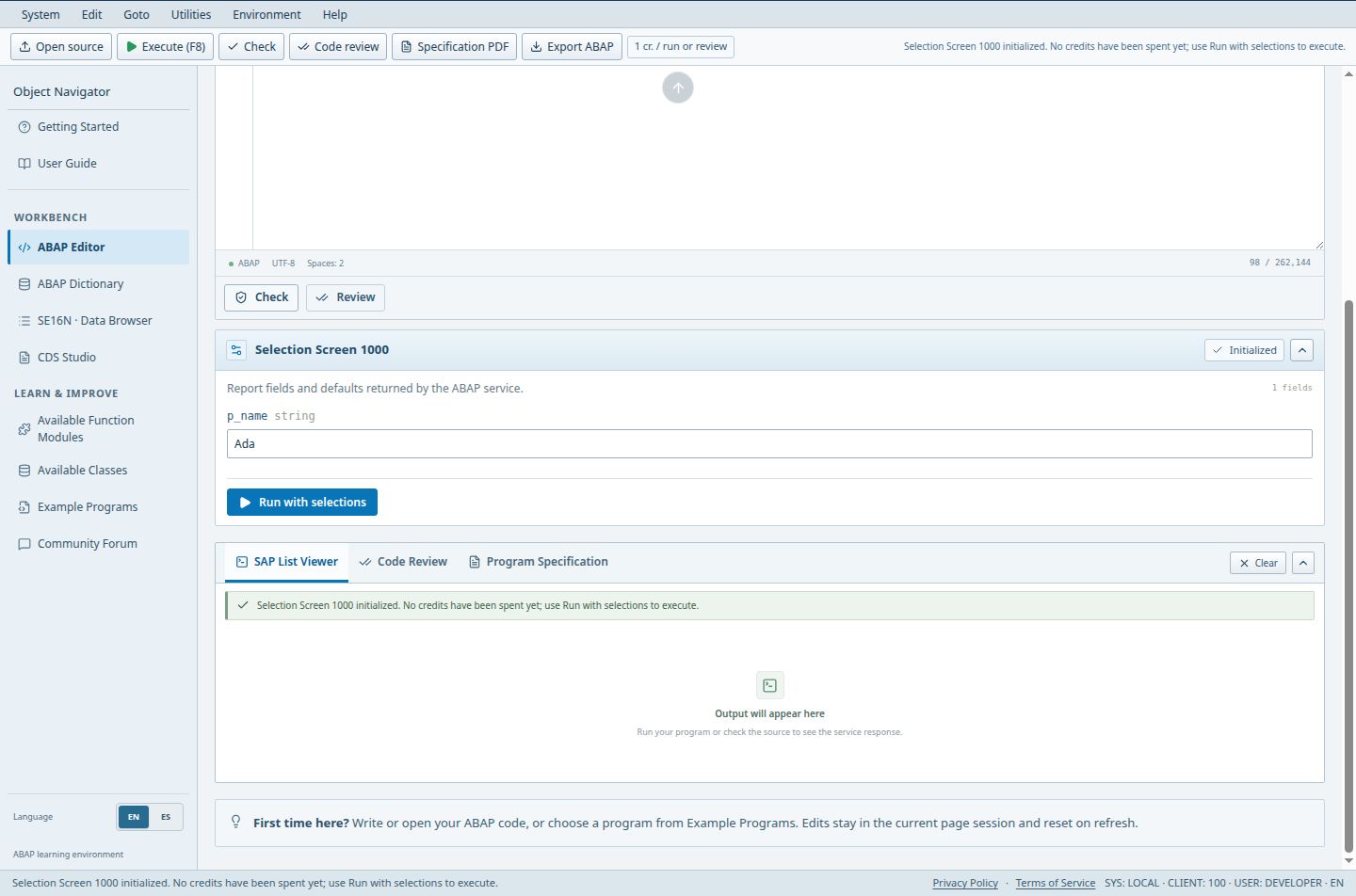
- P_NAME is the declared parameter; change the training value before executing.
- Run with selections starts the report using these values.
- The Selection Screen section appears only when the source declares selectable inputs.
Access (Guest / Free / Pro / Teams): full / full / full / full. full = Included; limited = Limited; signin = Sign-in required; no = Not included; soon = Coming Soon.
Steps
- Write or open a program that declares PARAMETERS or SELECT-OPTIONS.
- When the source declares a selection screen, Run program first initializes it and shows the fields with an Initialized chip. Initialization is free and consumes no credits.
- Enter values (single values, ranges or lists where the declaration allows them).
- Press Run with selections. The billed cost is calculated from the source, and the output opens in the SAP List Viewer tab. Example: enter a company code or a range in a SELECT-OPTION, run, and check that the list contains only matching rows.
Good to know
- Pro and Teams restore your last selections and results together with the saved program.
- When the source changes the selection screen is rebuilt, so re-check values after edits.
Limits
- Only the selection constructs the simulator supports are shown; unsupported statements produce a diagnostic.
Troubleshooting
- No selection screen appears: the program may declare nothing selectable, or a syntax error blocks initialization. Fix the diagnostics first.